Followup Scripts
What are follow-up scripts?
Follow-up scripts allow you to set 'transcripts' for your staff to read from, as they make the various type of follow-up calls.
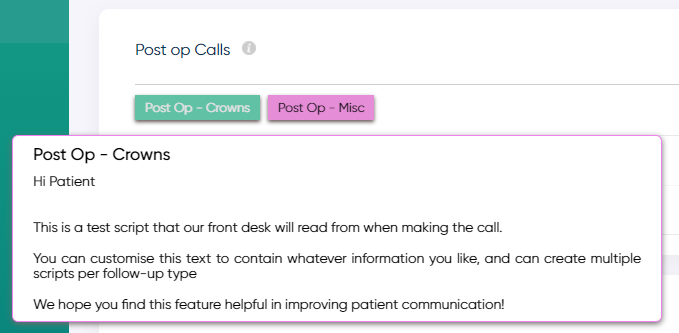
These transcripts will appear above each follow-up table in your Morning Huddle and Followups sections.
By hovering over these icons, your staff will be given a prompt to read from when contacting patients.
These transcripts will appear above each follow-up table in your Morning Huddle and Followups sections.
By hovering over these icons, your staff will be given a prompt to read from when contacting patients.
Adding Follow-up Scripts
You can add multiple follow-up scripts for each type of follow-up handled by Jeeve. This can be done via Settings -> Clinics -> Followup Scripts.
For detailed instructions on adding these scripts, please see our knowledge base article for Creating Follow-up Scripts
Related Articles
Creating Follow-up Scripts
How do I create follow-up scripts? How do I add a follow-up script? Follow-up scripts can be added under Settings -> Clinics -> Followup Scripts 1. Click on the "Add Script" button 2. Fill out the details, including name (which will appear on the ...Completing a Followup
How do I complete a followup? After making a followup call, select the appropriate call Status from the available options: Status Description Booked Patient successfully booked during call Already Booked Patient was already booked in Didn't want to ...Morning Huddle - Front Desk Followups
What is shown in the Front Desk Followups section? Front Desk Followups Front Desk Followups displays a table for each followup enabled in your system. There can be up to five tables shown to display the different types of followups available in ...TICK Followups
How do the TICK follow-ups work? TICK Followups Morning Huddle Your TICK followups are populated in your Morning Huddle daily. This is used to capture any patients who have been assigned the "TICK" treatment code in your PMS. A followup is ...FTA / UTA Followups
How do the FTA / UTA follow-ups work? FTA / UTA Followups Morning Huddle Your FTA and UTA followups are populated in your Morning Huddle daily. This is used to capture any patients who have Failed to Attend or were Unable to Attend. By default, these ...