Google Reviews - Adding your Google Link
How do I add my clinics google link to Jeeve?
Adding your Google Review link
Before sending review invites with Jeeve, you must enter each clinics Google Review link in the Jeeve settings
You can obtain your Google Review link by following the simple steps below:
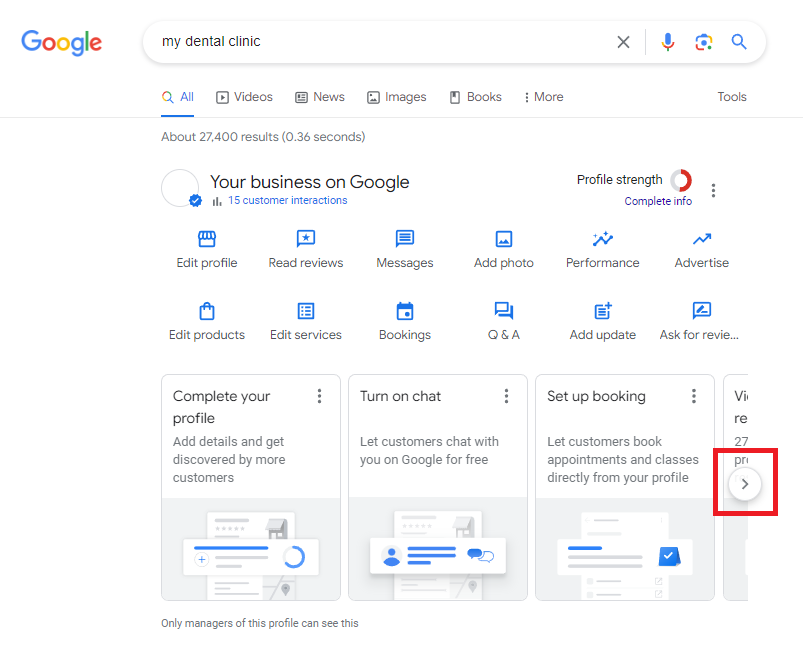
1. Log into your Google Business Profile and scroll to the right until you see the "Get More Reviews".
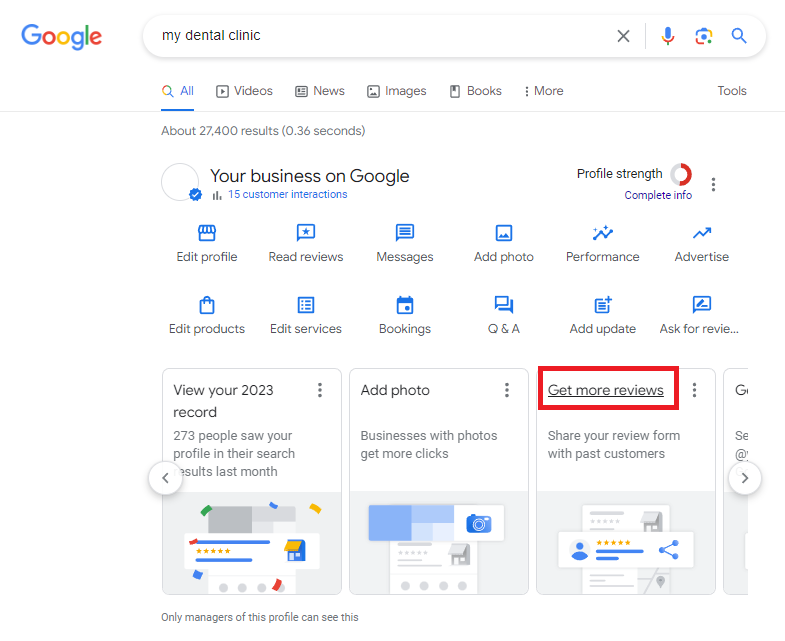
2. Click on the "Get more reviews" link
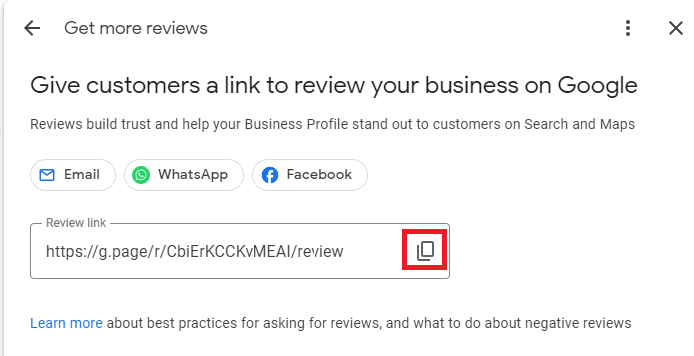
3. After clicking this button, you will see a popup that contains you Google Review link. Copy this by clicking the copy symbol on the right
4. (Optional) Use a link shortening service (like bit.ly) to shorten this link, so it will use less characters when sending a Google Review invite.
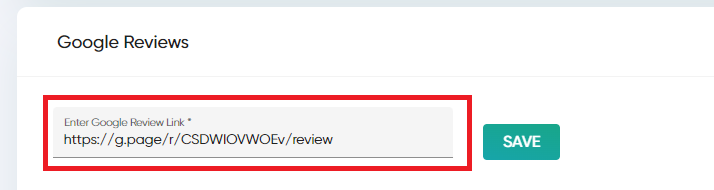
5. Ask your Jeeve administrator / owner to insert this link into your Jeeve settings under Settings -> Clinics -> (Choose Clinic) -> Google Reviews
Related Articles
How do I setup the Google Reviews feature?
Setting up Google Reviews You can now send Google Review invite requests to your patients, directly from your Morning Huddle! To enable this feature, there are a few simple steps to follow 1. Add Your Google Link See Google Reviews - Adding your ...Google Reviews - Creating an Invite Template
How do I create a template? Creating a Google Review invite template Jeeve administrators and users will access to "Settings -> Clinics -> (choose clinic) -> SMS Templates" can create message templates for Google Reviews. When creating a template, ...Google Reviews - Credits
How do I add more review invite credits? Included with your subscription, each Jeeve clinic will receive 50 complimentary credits per month Additional credits can be purchased by browsing to: Settings -> Clinics -> (choose clinic) -> Credits Click on ...Google Reviews - Sending a Review Invite
How do I send a review invite? Sending a review invite Jeeve users with access to the Morning Huddle - Front Desk Reminders page have the ability to send review requests to patients. Each patient will appear in your Morning Huddle with a "Send" ...Adding a New User
Each Jeeve user will require an email address to login to Jeeve. To add a user: 1. Click on Settings -> Users -> Add User 2. Enter the users name and email address 3. Select an appropriate role for this user (this determines their level of ...